
A working affiliate link analytics setup has three layers: click tracking in GA4 (through Google Tag Manager when links are cloaked), partner-side reporting for sales and commissions, and a link-health review of the destinations themselves. The first two show what visitors did. The third shows whether the monetized anchor still leads somewhere that can earn. Most setups stop after the first layer, so an old post can keep recording clicks while the destination is a discontinued product or a generic homepage. Affiliate Link Audit covers that third layer, classifying findings as Broken, Needs Attention or Healthy.
TL;DR
- GA4 records outbound clicks automatically, but it misses cloaked links such as
/go/product/, which need a Google Tag Manager (GTM) click trigger. - Clicks are not commissions: sales and earnings come from the partner's own reporting, a postback or a data feed.
- Store the affiliate ID or click ID with the visit if you want to connect a click to a sale, and expect gaps from blockers, consent choices and browser limits.
- Click data cannot show that a link that still loads (200 OK) leads to an unavailable product or a dead tracking path. That needs a separate review of each destination.
- Prioritize fixes by revenue exposure and traffic, not by the number of error codes.
Table of Contents
- What an affiliate link analytics setup has to answer
- Step 1: Record outbound clicks in GA4
- Step 2: Track cloaked and internal redirect links with GTM
- Step 3: Connect clicks to sales and commissions
- Step 4: Build a report that surfaces exceptions
- What click analytics cannot see
- Step 5: Prioritize which pages to fix first
- Where the analytics layer meets disclosure
- See the evidence on your own pages
- FAQ
- Sources
What an affiliate link analytics setup has to answer
Before configuring anything, define the questions the data must answer. For a publisher with a monetized content library there are four:
- Which pages and which monetized anchors receive outbound clicks?
- Which clicks end in a qualifying action (a sale, a signup, a paid signup) according to the partner?
- What does each click earn on average?
- Which links send qualified traffic to a destination that can no longer convert?
Questions 1 and 2 are tracking problems. Question 3 is a reporting problem. Question 4 is an audit problem, and it is the one that standard dashboards do not raise.
The metrics are common across programs. PartnerStack's reporting documentation lists clicks, signups, paid signups, revenue, pending and paid commissions, conversion rate and earnings per click. Earnings per click (EPC) is the figure that links the two sides: partner-reported earnings divided by the clicks you counted.
Step 1: Record outbound clicks in GA4
GA4's enhanced measurement can record outbound link clicks without any tags. In the GA4 admin, open the web data stream under Data Streams, confirm Enhanced Measurement and its Outbound clicks option are on, and GA4 logs these interactions as click events with parameters such as link_url, according to Analytify's setup guide. The same guide recommends confirming events in DebugView and allowing roughly 24 hours before standard and custom reports populate.
To isolate affiliate traffic from other outbound clicks, create a custom event. The guide describes a condition where the event name equals click and link_url contains the merchant's domain (for example amazon.com), producing an event such as affiliate_link_click. Mark that event as a key event if you want to report on it as a conversion-type action.
Two practical points apply at this stage:
- Use one naming convention for the event and keep it. Renaming later splits the history.
- Add parameters that describe the link, not just the URL: the page, the merchant, and the position of the anchor on the page. These make later prioritization possible.
Step 2: Track cloaked and internal redirect links with GTM
Many publishers route links through an internal path such as /go/product/. GA4's automatic outbound measurement does not see these as outbound, because the click initially points to the host domain. Click Catchers' guide makes the same point: GA4 sees the first same-domain URL, not the later merchant destination, so the click must be captured before the redirect.
The setup in Google Tag Manager is short:
- Create a Click trigger (or Just Links trigger) whose Click URL matches the internal redirect path, for example
/go/. - Create a GA4 event tag that fires on that trigger, with the event name
affiliate_click(oraffiliate_link_click, to match step 1). - Send the clicked URL as
link_url, plus the page path and, if your redirect plugin exposes it, the merchant or product slug. - Preview the container, click a live link, and confirm the event in DebugView before publishing.
Links that navigate away immediately can lose the event. Analytics Mania's GTM click-tracking guide explains that the Just Links trigger offers a Wait for Tags option, which briefly delays navigation (up to 2,000 milliseconds by default) so the tag has time to fire. Its Check Validation setting restricts firing to legitimate link clicks.
A limit to record in your documentation
The URL GA4 captures for a redirect link may be only the first hop. Click tracking cannot confirm that the merchant's tracking script fired, and consent choices, browser restrictions and blockers create gaps between GA4 and redirect-plugin reports, per Click Catchers. Treat GA4 click counts as a measure of intent, and expect them to differ from any other click counter on the same site.
Step 3: Connect clicks to sales and commissions
A click is not a payment. Whether you are paid depends on the program's terms: typically a qualifying action such as a purchase or signup must follow the click and be attributed to your ID. For the confirmation of that action, you rely on the partner.
The attribution chain works as follows. ClickBank's documentation states that tracking parameters are captured when a link is clicked, stored, tracked across the resulting events and made available in its analytics and reporting, and that parameter data can be passed to third-party tools through integrations. Stape's conversion-tracking guide describes the requirement for end-to-end attribution: an affiliate ID, partner ID, click ID or sub-ID enters with the click, is saved by the destination site, and is returned with sale details (order ID, value, currency, event time) through a conversion tag, pixel or server-side postback.
A typical implementation records the click, generates a click ID and stores it in a first-party cookie for 30 to 90 days, with blockers, browser limits, cross-device journeys and stripped parameters as the main sources of loss.
For a publisher who does not control the merchant's checkout, the realistic arrangement is:
| Data | Where it comes from | What it tells you |
|---|---|---|
| Outbound clicks by page and anchor | GA4 and GTM | Which content sends traffic |
| Sales, pending and paid commissions | Partner or network dashboard | What the program reports as earned |
| Earnings per click | Partner earnings divided by GA4 clicks | Which pages convert traffic into reported earnings |
| Destination status | Link-health review | Whether the link still points to a viable offer |
GA4 alone will not know every final sale, so pair it with partner-side reporting, a postback or a data feed.
Step 4: Build a report that surfaces exceptions
A dashboard with forty metrics hides the problem pages. Track360's reporting guide recommends limiting the default view to 8 to 12 key metrics and highlighting anomalies and exceptions over broad aggregates. For a content site, a useful default view contains:
- Outbound affiliate clicks by page (last 90 days and the prior 90 days)
- Clicks by merchant
- Partner-reported earnings by merchant
- EPC by page and merchant
- Pages where clicks held steady while partner earnings fell
The last item is the exception worth building the report around. A page whose clicks hold and whose reported earnings drop is a candidate for review. The cause may be seasonality, a changed commission rate or a dead destination, and the analytics cannot tell you which. That is where destination review begins.
What click analytics cannot see
Standard link checkers and analytics both work from the same signal: the request either loads or it does not. A link that returns a normal 200 OK can still be commercially unhealthy. Typical cases include:
- A product page that now reads "unavailable" or "discontinued"
- A redirect that lands on a generic homepage instead of the product
- A tracking path that may no longer carry the affiliate parameter through to the merchant
- A program or merchant that has changed its terms
In each case GA4 still records a healthy-looking click. The visitor arrived with purchase intent and met a dead end. Affiliate Link Audit's guide on why 200 OK does not mean an affiliate link is healthy describes this pattern, and the related article on affiliate link rot covers how it accumulates in older content.
The classification matters for how you act. Affiliate Link Audit uses three terms:
| Classification | Meaning |
|---|---|
| Broken | The link has a confirmed failure, such as an error response or a dead destination |
| Needs Attention | The link loads, but the evidence suggests commercial risk and needs manual review |
| Healthy | No issue was detected in the checks performed |
A classification is evidence about the destination. It is not a statement about commission crediting or lost income, which only the program's own reporting can establish. The publisher decides what to change.
Step 5: Prioritize which pages to fix first

After the analytics are live, you will have a list of pages with clicks and a list of links with issues. Ranking them by error count wastes effort on pages nobody reads. A better approach weights revenue potential and traffic. One published scheme, a priority score from an affiliate content update log, uses Revenue Potential x 3 + Ranking Opportunity x 2 + Traffic Trend x 2 + Update Urgency x 1. The weights are a template, not a rule, but the logic holds: a broken link on a page with high click volume and a strong earnings history comes before a broken link on a dormant post.
A simple worked example, using the data from Steps 1 to 4:
- Export the top 50 pages by affiliate clicks from GA4.
- Add partner-reported earnings per page or per merchant.
- Flag pages where EPC fell against the prior period.
- Review the destinations of the monetized anchors on those pages first.
- Record each finding as Broken, Needs Attention or Healthy, with the evidence (response, landing URL, product status).
The same logic applies when deciding which older posts deserve a wider refresh. An audit-first content freshness playbook describes scoring pages before updating them, which pairs well with the click and EPC data above. For the affiliate-specific version, see Affiliate Link Audit's articles on ranking revenue risk rather than errors and auditing the top 10 pages with outdated Amazon links.
Where the analytics layer meets disclosure
Tracking changes nothing about the disclosure obligation, but both are reviewed on the same pages. The FTC's endorsement guidance says that when a review carries a clear and conspicuous disclosure of the relationship and the reader can see the disclosure and the link at the same time, readers have the information they need. The Guides were revised in 2023, including a definition of "clearly and conspicuously." When you audit old posts for link health, check the disclosure placement on the same pass; Affiliate Link Audit's FTC affiliate disclosure audit lists six steps for U.S. publishers. Questions about your specific obligations belong with a lawyer.
Perspective
We see affiliate analytics as two separate instruments that answer different questions. Click tracking measures what readers did on the page. Link-health evidence measures what the destination was able to offer when they arrived. A site that runs only the first will report stable traffic while the monetized anchors on older posts point to unavailable products, homepage redirects or tracking paths that may no longer carry the affiliate parameter.
This is the reason our audits go beyond 404 detection. Most link checkers stop at error codes. We evaluate links that return 200 OK and classify each finding as Broken, Needs Attention or Healthy, separating clear fixes from items that need manual review. We do not verify commission crediting, and we do not estimate lost income. We provide the evidence; the publisher decides what to fix and in what order.
Publishers with a large library of older posts benefit most from this separation, because a prioritized list replaces the need to open every post by hand.
Michael N.
See the evidence on your own pages
Affiliate Link Audit offers manual and semi-automated audits that detect and prioritize broken, outdated or non-earning affiliate links, evaluate whether links that still load remain commercially viable, and deliver a prioritized action plan with suggested replacements. The Full Audit costs $97 as a one-off purchase. Every audit starts with a free sample report ($0), so you can review the evidence before purchasing the full audit. The sample report shows the format, and the Full Audit page covers the purchase.
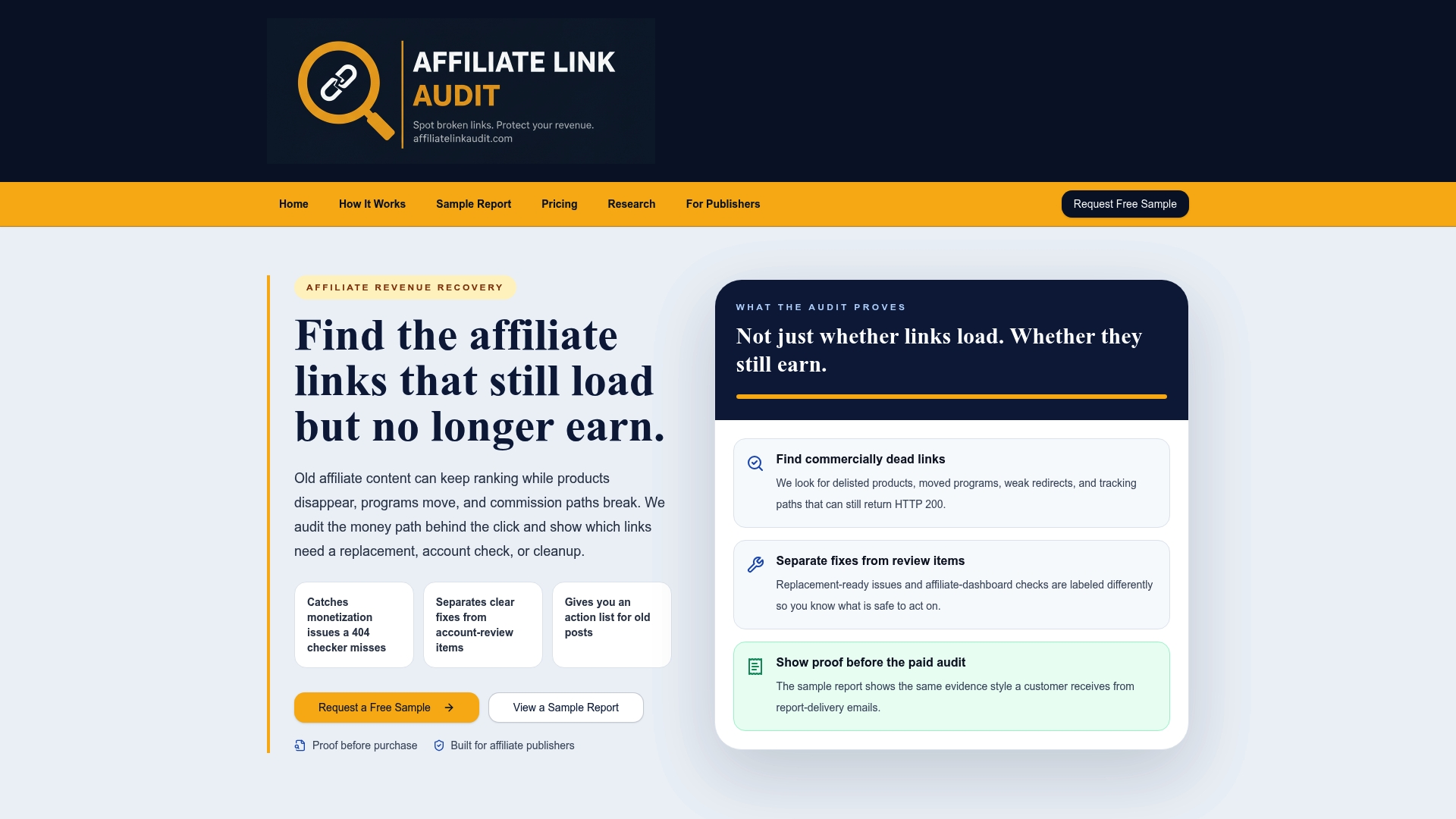
The audit identifies and classifies; it does not change your links. Publishers who want more detail on the process can read the affiliate monetization audit article or the publishers page.
FAQ
Do you get paid when someone clicks an affiliate link?
Not necessarily. Programs generally pay when a qualifying action, such as a purchase or signup, is attributed to your ID, and the terms define what qualifies and how long the attribution window lasts. The click is recorded, but the partner's reporting shows what was earned, including pending and paid commissions.
Why does GA4 not show my /go/ links as outbound clicks?
GA4's automatic outbound tracking sees the first URL, which belongs to your own domain, before the redirect sends the visitor to the merchant. Use a GTM click trigger that matches the redirect path and send the branded URL as link_url. Confirm the result in DebugView before relying on the numbers.
Can GA4 show how much I earned from affiliate links?
Only in part. GA4 shows clicks and your own events; final sales and commissions sit with the partner, so a postback, data feed or the partner's dashboard supplies earnings. Compare the two sources as EPC rather than expecting identical counts.
How do I find affiliate links that load but no longer earn?
Analytics will not flag them, because the click is still recorded. Review the destination of each monetized anchor on your highest-click pages for unavailable products, homepage redirects and broken tracking paths. An audit that classifies each link as Broken, Needs Attention or Healthy gives you that list with evidence.
Sources
- Measuring program performance – PartnerStack
- How To Track Affiliate Links With GA4 – Analytify
- How to Track Affiliate Links in WordPress (2026 Guide)
- Track Affiliate Link Clicks in GA4 – Click Catchers
- Google Tag Manager Click Tracking with GA4 – Analytics Mania
- Affiliate Tracking Parameters – ClickBank Support
- How to track affiliate conversions and pay partners – Stape
- What Is an Affiliate Link? How Tracking Really Works – Rekomi
- Affiliate Revenue Dashboard Template for GA4 and Looker
- Affiliate Reporting Dashboards: Operator Metrics Guide 2026 – Track360
- How To Build an Affiliate Content Update Log That Scales
- FTC's Endorsement Guides: What People Are Asking
Recommended
- GA4 Affiliate Tracking for Marketers: partner_click Rules + $97 Audit
- Affiliate Links That Stop Earning: Test, Classify, Prioritize
- UTM vs Affiliate Tracking: What Each Records and When to Use Both
- Impact Affiliate Link Issues: Causes, Checks and Triage
This article was produced with AI assistance and reviewed for accuracy. Findings language ("Broken," "Needs Attention," "Healthy") reflects Affiliate Link Audit's evidence-based classification system.