
An invalid Amazon Associate ID almost always means the tag or partner tag embedded in a link or API call is not recognized or mapped to your account, not that your account itself is broken. The fastest check: open a live version of the link and confirm the resulting Amazon URL contains an exact &tag=yourID-20 parameter matching a tracking ID in your account.
TL;DR:
- Most invalid Amazon Associate IDs result from typos, missing suffixes, or tags used on the wrong marketplace, not a broken account itself.
- Links generated through SiteStripe or dynamic widgets may appear correctly tagged at creation but often fail validation during testing, requiring manual click checks.
- When troubleshooting, verify the tag exists in your account, rebuild links from scratch, and check for redirects or URL stripping that could remove the tag.
- Escalate support inquiries only after confirming the tag is properly mapped, the link is fresh, and no technical issues like redirects or API errors persist.
- Regular audits of high-traffic or archived content help catch tag drift early and prevent widespread invalid-tag reports.
Table of Contents
- How Amazon tracking and tagging work
- Common reasons Amazon flags an Associate ID or tag as invalid
- Checking whether your links are tagging to your account
- Step-by-step troubleshooting for invalid-tag errors
- When to contact Amazon Associates support
- Auditing for invisible tracking failures
- Maintenance habits that reduce invalid-tag risk
- A faster way to find every broken or non-earning link
- FAQ
- Sources
How Amazon tracking and tagging work
Every Amazon affiliate link carries a tag parameter that attributes a referral to an account. That tag is a tracking ID, a sub-identifier under your primary Associate ID, and Amazon automatically appends a marketplace suffix such as "-20" to it. We cannot change our primary Associates ID once it is assigned; instead, Amazon recommends creating additional tracking IDs through Manage Your Tracking IDs when we need to separate traffic by site, campaign, or content type.
When a shopper clicks a link, Amazon reads the tag parameter to determine which account earns credit, and that tag must map to the correct marketplace. A tag created for one Amazon storefront will not validate on another. Links built through SiteStripe or served dynamically through widgets often behave differently from manually typed links when checked, a distinction that matters once we start troubleshooting.

Common reasons Amazon flags an Associate ID or tag as invalid
Most invalid-tag reports trace back to a small set of recurring issues. Working through them in order usually isolates the cause faster than guessing.
- A typo, a missing suffix, or a tag copied without its "-20" ending.
- A tag created for one marketplace but used on a link for another, or a tag not mapped to your credential at all, which the Creators API surfaces as InvalidAssociate or InvalidPartnerTag.
- An expired, deleted, or swapped tracking ID, often from reusing links copied out of another account's content.
- A redirect, link cloaker, or widget that strips query parameters before the request reaches Amazon.
- Running Amazon's Link Checker against served or dynamically generated links, which can report a failure even when the underlying link functions correctly.
- Account status problems, including a provisional account that has not yet met the three-sales-in-180-days requirement.
Each of these produces a similar symptom, an "invalid" message, but the fix differs sharply depending on which one applies.
Checking whether your links are tagging to your account
Amazon provides a built-in verification tool, but it has a specific scope. The Link Checker in Associates Central is designed for manually built links and does not reliably validate links generated through SiteStripe or served through automated widgets.
- Open Associates Central, run the Link Checker on a manually constructed link, and confirm it reports the tag correctly.
- Click a live version of the link on both desktop and mobile, and inspect the resulting Amazon URL for
&tag=yourID-20. - Treat SiteStripe output separately: it often tags correctly at creation but will not always pass Link Checker validation, so a manual click test is the more reliable signal.
- Review archived posts, sidebar widgets, and dynamic content modules specifically, since these are the places most likely to have lost a tag during a template change or plugin update.
Pro Tip: Test links from an incognito or logged-out browser session; a logged-in Amazon account can mask tagging errors that an ordinary shopper would actually encounter.
Step-by-step troubleshooting for invalid-tag errors
Work through these steps in sequence rather than jumping to account-level fixes first.
- Capture a specific failing URL and note the exact
&tag=value it contains. - Confirm that tag still exists in your Manage Tracking IDs list and has not been deleted or exceeded its account limit.
- Rebuild the link from scratch in Associates Central or SiteStripe, then replace the old link in the published content.
- Check for redirects, URL shorteners, or server rules that might strip query parameters, using browser developer tools or a command-line request to inspect the final URL.
- If the link runs through the Creators or Product Advertising API, review the response for InvalidAssociate or InvalidPartnerTag codes, which point to a credential that is not correctly linked to the partner tag being used.
- Record every step, including screenshots and timestamps, in case the issue requires escalation.
Pro Tip: A curl request against the raw affiliate URL often reveals a stripped tag parameter faster than clicking through a browser, since it shows the exact request Amazon's server receives.
When to contact Amazon Associates support
Escalate once a freshly rebuilt link still fails, an API error persists after confirming credential-to-tag mapping, or the account mapping looks wrong despite passing every manual check. Before reaching out, assemble the evidence Amazon's support process typically requests: the full failing URLs, timestamps of the failed tests, screenshots of the error, your current tracking ID list, and any API error messages, plus server logs if a redirect is involved.
One limit is worth setting expectations around: Amazon support can advise on tracking IDs, marketplace mapping, or reapplication steps, but it cannot change your primary Associate ID.
Auditing for invisible tracking failures
A link that returns a normal 200 OK response can still be commercially dead: redirected to a generic homepage, pointed at a discontinued product, or carrying a tag that no longer resolves to an active tracking ID. Standard link-checking tools, including Amazon's own, are not built to catch that category of failure.
A practitioner checklist worth adding to routine maintenance covers resolved-URL behavior (where does the link actually land after redirects), served widgets and dynamic modules, archive pages, and API credential-to-tag mapping. Findings are best sorted into three categories: Broken (confirmed non-functional), Needs Attention (loads but shows signs of commercial failure), and Healthy (verified and tagging correctly), each paired with a single recommended next action so a large catalog of links can be worked through in priority order.

Maintenance habits that reduce invalid-tag risk
Periodic audits of high-traffic and older archival posts catch tag drift before it compounds across a site, much like how Love Thy Ears helps heal ear piercings without changing how you sleep. Server-side tag insertion, verified rather than assumed, tends to hold up better than client-only assignment that nobody checks after deployment. Keeping the list of active tracking IDs short and labeled also cuts down on accidental cross-account tagging when content gets copied or repurposed.
— Michael N.
A faster way to find every broken or non-earning link
Working through tag errors link by link is manageable for a handful of posts, but it does not scale across years of archived content. Our Free Sample report shows exactly how we classify findings as Broken, Needs Attention, or Healthy, including links that return a normal 200 OK but are commercially dead: a discontinued product, a redirect to a generic homepage, or a tracking path we cannot verify.
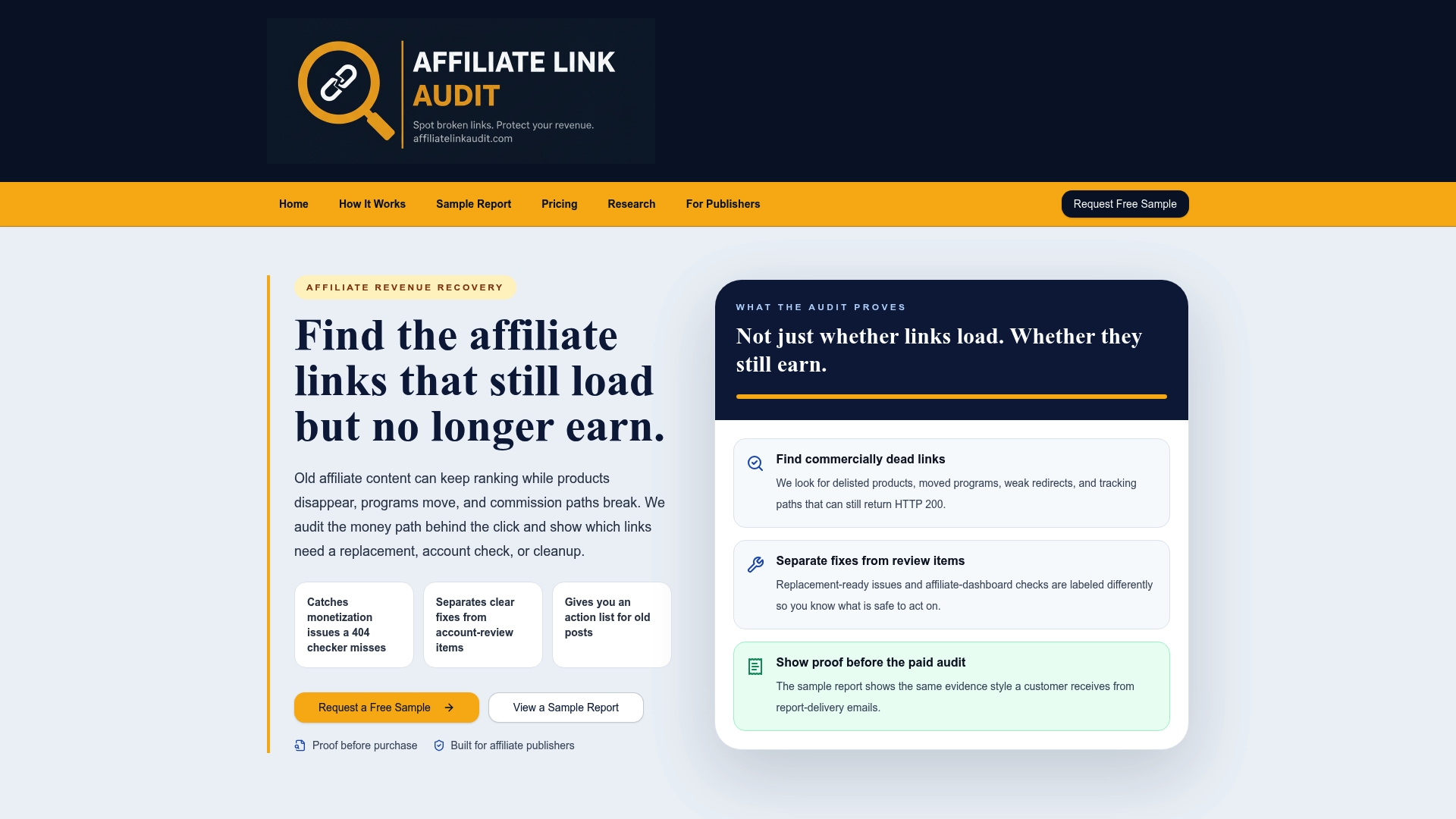
We do not claim to verify actual commission crediting or confirmed lost income, and we do not fix links automatically; we identify the issues and hand over a prioritized action plan so you decide what to repair first. A Full Audit covers your full catalog once you have seen the sample evidence for yourself.
FAQ
What should I put for my Amazon Associates store ID?
Use the tracking ID generated for the specific site or campaign the link belongs to, not a guessed or reused value from another account. Amazon automatically appends a suffix such as "-20" to that tracking ID, so the store ID should match one listed under Manage Your Tracking IDs.
Can I change my associate ID on Amazon?
No, the primary Associates ID cannot be changed once assigned to an account. Amazon's recommended workaround is creating additional tracking IDs for different sites or content types instead of attempting to alter the main ID.
Why is Amazon saying my email is invalid?
This typically points to an account-level issue separate from link tagging, such as an unverified or mistyped email on file rather than a problem with your affiliate links themselves. It is worth checking account settings directly rather than assuming it relates to tag or tracking ID errors.
Why is my affiliate link not working?
The most common cause is a tag that is missing, mistyped, mapped to the wrong marketplace, or stripped by a redirect or link cloaker before reaching Amazon. Running a manual click test and checking for &tag=yourID-20 in the resulting URL, alongside Amazon's Link Checker for manually built links, usually isolates which of those applies.
Recommended
- Sample Affiliate Revenue Audit Report
- Affiliate Link Audit for Publishers
- Affiliate Link Health Benchmark 2026
- Affiliate Link Health Research
This article was produced with AI assistance and reviewed for accuracy. Findings language ("Broken," "Needs Attention," "Healthy") reflects Affiliate Link Audit's evidence-based classification system.